Turn any web page into an image
Capture what's on screen, a whole scrolling page, or just one part of it, then copy it or save it as PNG, JPEG or WebP.
- 1Right-click the page
- 2Choose what to capture
- 3Copy or download
Start a capture
There are two ways to start. Both offer the same four options.
- Back
- Reload
- Save as…
- Print…
 Web to Image›
- Inspect
Right-click menu
Right-click anywhere on a page, point to Web to Image and pick an option.
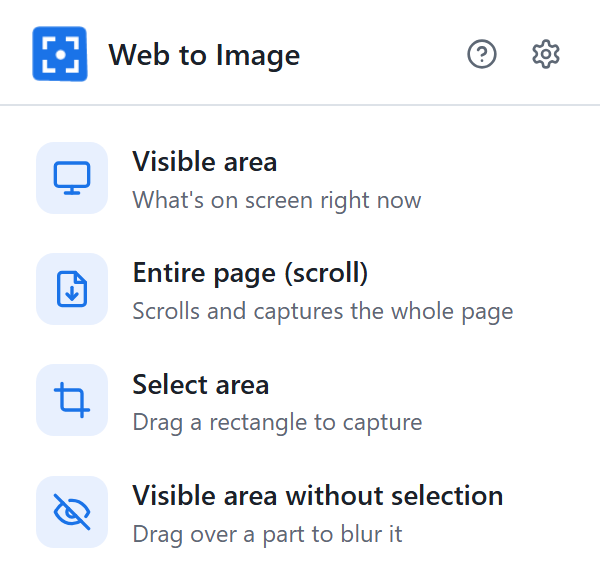
Toolbar button
Click the icon in Chrome's toolbar. Don't see it? Click the puzzle-piece icon and pin Web to Image.
Choose what to capture
Each option captures something different.
Visible area
Captures exactly what you see on screen right now. It's the quickest option.
45%Entire page (scroll)
Scrolls down the page by itself and joins everything into one tall image.
- The toolbar icon shows the progress as a percentage.
- Stay on the tab until it finishes. Switching tabs stops the capture.
- Press Esc to stop early and keep what's captured so far.
- Very long pages are saved as several images.
Select area
The page darkens. Hold the left mouse button and drag a rectangle over the part you want, then let go.
- The size is shown while you drag.
- Press Esc to cancel.
Visible area without selection
Captures the screen but blurs the part you drag over. Use it to hide names, emails, prices or anything private.
- The area you drag over is shown with red stripes.
- Change how strong the blur is in Settings.
Copy or save the image
Your image opens in a new tab next to the page.

- AFormat: PNG is sharp and lossless; JPEG and WebP give smaller files, with a quality slider.
- BCopy: puts the image on the clipboard so you can paste it into a chat, email or document.
- CDownload: saves the image into
Downloads/Web to Image. When a long page is split, this button becomes Download all, and each image also gets its own buttons.
Make it yours in Settings
Open Settings from the right-click menu, the gear in the toolbar popup, or the image tab. Changes save automatically.
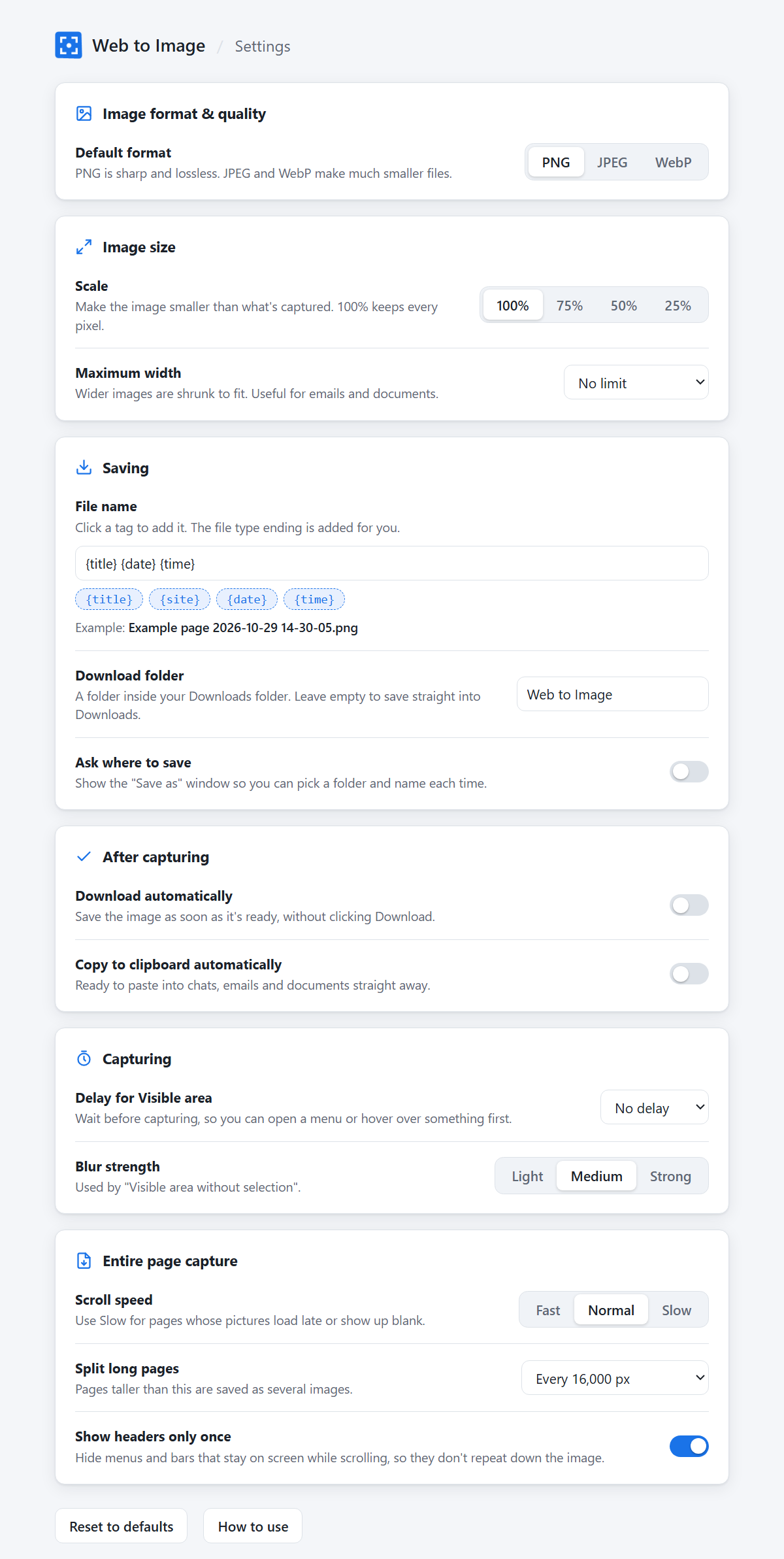
Format & size
- Default format: PNG, JPEG or WebP.
- Quality: for JPEG and WebP; lower means smaller files.
- Scale: shrink images to 75%, 50% or 25%.
- Maximum width: keep images no wider than, for example, 1280 px.
Saving
- File name: build names from
{title},{site},{date}and{time}. - Download folder: a folder inside Downloads.
- Ask where to save: pick the place and name each time.
After capturing
- Download automatically and Copy to clipboard automatically.
Capturing
- Delay for Visible area: 3, 5 or 10 seconds to open a menu first. The countdown shows on the toolbar icon.
- Blur strength: light, medium or strong.
- Scroll speed: choose Slow if pictures come out blank.
- Longest page to capture: a safety limit for pages that never end.
- Split long pages and Show headers only once.
Good to know
Some pages can't be captured
Chrome blocks extensions on its own pages, like chrome:// pages and the Chrome Web Store.
Capturing files on your computer
Open chrome://extensions, click Details on Web to Image and turn on Allow access to file URLs.
Long pages take a moment
Chrome allows about two screenshots per second, so a very long page can take a while. Watch the percentage on the toolbar icon.
Pages that never end
Social feeds and some news sites keep loading more as you scroll. The capture stops after 30 screens; change this under Longest page to capture in Settings, or press Esc to stop sooner.
Need a menu or hover in the picture?
Set a Delay for Visible area in Settings, start the capture, then open the menu before the countdown on the toolbar icon ends.
Images are kept for 24 hours
You can refresh the image tab or come back to it later that day. Save anything you want to keep.
Still stuck?
Email us with the page address and what happened, and we'll help.