 Web to Image
Turn any web page into an image
Capture what's on screen, a whole scrolling page, or just the part you need. Blur private details, then copy or download in one click.
No account. No tracking. Your images never leave your computer.
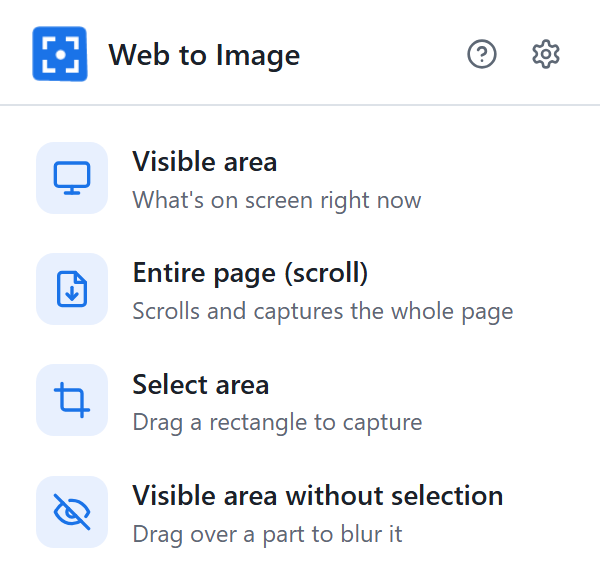
Four ways to capture
Right-click any page, choose Web to Image, and pick what you need.
Visible area
Exactly what you see on screen, in one click. Add a short delay to catch open menus.
Entire page (scroll)
Scrolls the page for you and joins it into one tall image. Sticky headers appear only once, and very long pages are split into several images.
Select area
Drag a rectangle over the part you want. Only that part becomes the image.
Visible area without selection
Capture the screen but blur the part you drag over. Perfect for hiding names, emails and prices.
Everything you need, nothing you don't
Simple by default, with settings for when you want more control.
PNG, JPEG or WebP
Sharp lossless PNG, or small JPEG and WebP files with a quality slider.
Copy or download
Paste straight into chats, emails and documents, or save to a folder of your choice.
Any size you need
Shrink images by percentage or to a maximum width, ready for email and the web.
Handles long and endless pages
Loads lazy images first, stops safely on pages that never end, and you can press Esc any time.
Smart file names
Name files with the page title, site, date and time, automatically.
Capture delay
Wait 3, 5 or 10 seconds before capturing, so dropdowns and hover effects show up.
Your pages stay private
Web to Image works entirely inside your browser. It has no servers, no accounts and no analytics, so your captures never leave your computer.
Questions
Is Web to Image free?
Yes. There are no paid plans, ads or sign-ups.
Why can't I capture some pages?
Chrome doesn't let extensions capture its own pages, such as chrome:// pages and the Chrome Web Store. To capture files on your computer, turn on "Allow access to file URLs" for Web to Image in chrome://extensions.
Why does a long page take a while?
Chrome allows about two screenshots per second, so a long page takes a few seconds. The toolbar icon shows the progress, and you can press Esc to stop early.
A header repeats or pictures are blank. What can I do?
In Settings, make sure "Show headers only once" is on, and set "Scroll speed" to Slow for pages whose pictures load late.
Does it work in Edge, Brave and other browsers?
It's built for Google Chrome and should also work in other Chromium-based browsers such as Microsoft Edge and Brave.
Start capturing in seconds
Add Web to Image to Chrome, then right-click any page.
Add to Chrome, it's free